Monday, 8 April 2019

Skype Not Working on iPhone X/8/7, How to Fix?


Tip: Skype Not Working on iPhone X/8/7, How to Fix?

In case Skype is not working, there are a handful of solutions that can help you resolve the issue. Below is a list of each and a description of the procedure.

1. Force app to close

To force close apps on iPhone X, follow the procedure below.

Step 1: Navigate to the home screen. Swipe up from the bottom of your screen and stop halfway; this will activate the multitasking mode.

Step 3: Tap and hold the app you wish to force close and use one of two methods to force close: tap the red icon with the negative sign or swipe the app's preview up.


To force close apps on iPhone 8 and earlier:

Double-tap the home button to view all apps that are running, swipe left or right to locate the app you wish to close, swipe up the app preview you'd like to force close.


2. Force Restart your iPhone

To force restart your iPhone, follow the procedure below.

For iPhone 6s or older, you need to press and hole the "Home" button and the "Volume Down" button (Power button when you use iPhone 6) until the Apple logo appears on your screen.

For iPhone 7/7Plus, press and hold the Power (On/Off) button and Volume Down button to restart your device.

For iPhone 8/8 Plus/X, then you will need to press the volume up and down button. Then, long press the side button till the Apple logo appears and the device restarts.


3. Clear App Cache

To clear app cache, follow the procedure below.

Step 1: Navigate to Settings > General > Storage & iCloud Usage > Manage Storage.

Step 2: Delete the app that's taking a lot of space by tapping it then confirming by tapping Delete App.


4. Reinstall Skype

Delete Skype by pressing and holding it then tapping the delete icon. To reinstall it, launch the App Store, search for Skype in the search bar and install it.
Conclusion

Sponsor ads:

Gihosoft Free iPhone Data Recovery:https://www.gihosoft.com/iphone-data-recovery-free.html

Gihosoft iPhone Data Recovery Free

Free iPhone Data Recovery Software for Windows/Mac

Recover up to 12+ types of files, including contacts, SMS, photos, WhatsApp, Viber, notes, etc.

Restore lost data from iOS devices directly or from iTunes and iCloud backup

Recover iPhone data lost due to iOS upgrade/jailbreak, accidental deletion, device lost or broken

Support all the latest iPhone, iPad and iPod Touch

Both Free and Pro version.

If you lost data after you updated to a new iPhone, you can always use Gihosoft iPhone Data Recovery to get the data back from the old iPhone or backup.You may also like: iphonerecovery.com

If you use android phones, please choose Gihosoft Android Data Recovery.

With Gihosoft Android Data Recovery, no longer afraid of data loss!

Must read:Youtube video downloader for pc

Gihosoft RePicvid Free Photo Recovery Software provides a free photo recovery software for windows to help users recover the deleted or lost photo for free.

Jihosoft Android Data Recovery: the best Android Data Recovery software for Windows and Mac to recover deleted contacts, messages, photos, videos, WhatsApp and etc from Android devices.Tips:How to transfer messages from iPhone to iPhone

Jihosoft File Recovery:Recover deleted, Lost, formatted, or corrupted files from PC, flash drive and memory card easily & safely

Also Read:Update Android

Also Read:Top 8 Best Alternative Websites to TamilGun in 2019

Also Read:Free Download FRP Bypass APK for Android 2019

Also Read:Best 10 Movie4k Alternative Websites for Movie Streaming 2019

Also Read:Top 32 Best Proxy and Mirror Sites to Unblock Fmovies 2019

Also Read:Best Torrent Search Engine Sites to Find Your Favorite Torrents 2019

Also Read:5 Best Sites Serving as Alternatives to TheWatchSeries Online 2019

Also Read:Top 6 Best Alternative Websites to Torlock For You 2019

Also Read:Download Latest Samsung USB Drivers for Mobile Phones on Windows

Also Read:take a screenshot on any Android phone

Also Read:Convert Video to GIF Free with Top 5 Free Video to GIF Converters

Also Read:Add Timestamp to Photos on Windows/Mac/Android/iPhone

Also Read:iPhone Manager

Sunday, 24 February 2019

The Best Find My iPhone Removal Tool for iPhone 2019


Tips 1: How Does Find My iPhone Work?

Find My iPhone is a tool on every Apple iPhone that adds an extra layer of protection to your device. When turned on, you can locate your iPhone using another device. Not only does this help you if you lose your phone, but it also prevents other people from gaining access to your personal information. Here are some of the Find My iPhone features that you should know about:

1) Activation Lock - The Find My iPhone activation lock is a tool that is designed to prevent others from gaining access to your phone. If your phone is ever lost or stolen, the Activation lock prevents them from reactivating your device without your permission, and thereby increases your chances of the phone being returned to you. Your activation Lock is automatically enabled anytime you turn on Find My iPhone.

2) Find Your Device - If you ever lose your phone, you can use Find My iPhone to recover it's approximate location.

3) Erase Your Data - If you are ever worried that your phone has fallen into the wrong hands, you can use Find My iPhone to erase all of your personal data and information from the phone.

4) Lost Mode - If your phone ever goes missing, Lost mode will not only help you to track it's whereabouts, but will also send a display message (with your telephone number) to the phone so that whoever finds it can contact you without entering into your personal data.
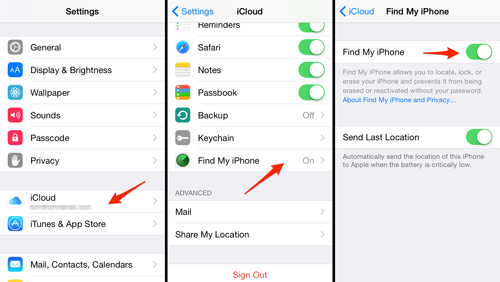
Tips 2: How to Turn off Find My iPhone without A Find My iPhone Removal Tool

If you still have your Apple ID and password, then you can remove Find My iPhone easilty without a Find My iPhone Removal tool. If you want to turn Find My iPhone off, you have a few options:
On Your iPhone Settings

Step 1: On your phone, open your Settings.

Step 2: Tap on your Device name.

Step 3: Tap on "iCloud".

Step 4: Scroll down and tap on "Find My iPhone".

Step 5: Turn the switch to "off".

Step 6: Enter your Apple ID and password to confirm your choice.


In the majority of cases, we always recommend keeping your iPhone logged into Find My iPhone. This will help to protect your phone and your data from unwanted users should it ever be lost or stolen. With that being said, should you decide you do not want to use Find My iPhone, there are three different methods of removal. The first two methods above will simply turn the tool off. But with the help of the iMyFone LockWiper Find My iPhone Removal tool, you can completely remove your Find My iPhone account and start completely from scratch. Sponsor ads:

Gihosoft Free iPhone Data Recovery:iphonerecovery.com

Free iPhone Data Recovery Software for Windows/Mac

Recover up to 12+ types of files, including contacts, SMS, photos, WhatsApp, Viber, notes, etc.

Restore lost data from iOS devices directly or from iTunes and iCloud backup

Recover iPhone data lost due to iOS upgrade/jailbreak, accidental deletion, device lost or broken

Support all the latest iPhone, iPad and iPod Touch

Both Free and Pro version.

If you lost data after you updated to a new iPhone, you can always use Gihosoft iPhone Data Recovery to get the data back from the old iPhone or backup.

Top 10 Best FRP Bypass Tools to Bypass Google Account on Android Device 2019

Worth reading:download youtube 1080p

If you use android phones, please choose Gihosoft Android Data Recovery

Jihosoft Android Data Recovery: the best Android Data Recovery software for Windows and Mac to recover deleted contacts, messages, photos, videos, WhatsApp and etc from Android

Thursday, 21 February 2019

How to Delete Movies Directly from iPad 2019?


How to Delete Movies Directly from iPad?

Most users download and store movies in their iPad, which take up a humongous measure of space. Most users find it difficult to delete movies from their iPad. Here are some ways from which you can delete videos from your iPad.
1Delete Videos from iPad Settings

Step 1: Navigate videos at Settings.


For iOS 8: Go to Settings > General > Usage > Manage Storage > Videos.


For iOS 9: Go to Settings > General > Storage & iCloud Storage > Manage Storage under Storage > Videos.

Step 2: Find the video/movie you want to delete and swipe it to left, and then tap the red "Delete" button.


2Delete Movies from iPad Camera Roll

Step 1: Go to Albums on your iPad.

Step 2: Open Camera Roll and select the video that must be deleted.

Step 3: Tap on it and you will see a "trash can" symbol show up in the upper right corner, press that button and the movies will be deleted.

Note

When you wish to delete the movies adjusted from iTunes, you should backpedal to the iTunes on your PC. From the library there, clients can uncheck the specific movies to ensure that it doesn't synchronize back when the gadgets are associated once more. By following this method, the movies will keep inside the PC but won't consume additional space on iPad.Sponsor ads:

Gihosoft Free iPhone Data Recovery:https://www.gihosoft.com/iphone-data-recovery-free.html

Gihosoft iPhone Data Recovery Free

Free iPhone Data Recovery Software for Windows/Mac

Recover up to 12+ types of files, including contacts, SMS, photos, WhatsApp, Viber, notes, etc.

Restore lost data from iOS devices directly or from iTunes and iCloud backup

Recover iPhone data lost due to iOS upgrade/jailbreak, accidental deletion, device lost or broken

Support all the latest iPhone, iPad and iPod Touch

Both Free and Pro version.

If you lost data after you updated to a new iPhone, you can always use Gihosoft iPhone Data Recovery to get the data back from the old iPhone or backup.You may also like: iphonerecovery.com

If you use android phones, please choose Gihosoft Android Data Recovery.

With Gihosoft Android Data Recovery, no longer afraid of data loss!

Must read:Youtube video downloader for pc

Gihosoft RePicvid Free Photo Recovery Software provides a free photo recovery software for windows to help users recover the deleted or lost photo for free.

Jihosoft Android Data Recovery: the best Android Data Recovery software for Windows and Mac to recover deleted contacts, messages, photos, videos, WhatsApp and etc from Android devices.Tips:How to transfer messages from iPhone to iPhone

jihosoft Free iPhone Data Recovery

How to Copy Playlist from iPod to iTunes on Computer 2019


Part 2: How to Copy Playlist from iPod to iTunes on Computer?

Step 1: Open the windows explorer or iExplorer on your PC.

Step 2: Immediately the device is connected, the “device overview” will be displayed. To get started copying music, click “music”, to access the music, click “media library” through the side bar on the left.


Step 3: You can check through or navigate your music and playlists in the left menu. Choose the songs you wish to copy to your computer. If you wish to copy multiple tracks, hold the “control” key while you select them.

Step 4: At the lowest part of the media library, select the “transfer” button and a menu bar comes up. Click "Transfer Entire Playlist to iTunes".


Note

Once the iPod is connected to PC, iTunes will notify you to sync your device. Do not sync your device with the PC until you have transferred or copied the playlist file completely, if synced, it may result in the permanent loss of data from the device.Sponsor ads:Offline Music Apps for iPhone

Must Read:If you lost data after you updated to a new iPhone, you can always use Gihosoft iPhone Data Recovery to get the data back from the old iPhone or backup.

Gihosoft Free iPhone Data Recovery:iphonerecovery.com

If you use android phones, please choose Gihosoft Android Data Recovery


Part 3: How to Copy Playlist from iPod to iTunes Using iTunes?

Step 1: To get started, download, install and launch the iTunes.

Step 2: Select the "File" at iTunes app. This will display a small menu.

Step 3: Select “Library” > “Export playlist”. This command opens the file browser in order to choose the location to save the playlist file.

Step 4: iTunes for Windows save the playlist file to the “system 32” folder by default. This is not an easy location to find it later. Change to an easy to access location either a document folder or preferably desktop.

Step 5: Select the "Save as type" menu to get the format options. There are various options to pick from, and the format to be chosen depends on the usage of the playlist.

Step 6: Pick a playlist file name and save it; usually by default, the playlist file will have the same name as it had on iTunes. Luckily, the playlist file name can be changed.


Part 4: Bonus Tip Before Copy Playlist from iPod to iTunes

1. Before transferring music from your iPod to iTunes, be sure to check that the remaining storage space in the receiving device is sufficient.

2. Once the device is connected, iTunes will notify you to sync your device, select “Cancel” or “No”. Do not sync your device with the PC until you have transferred or copied the playlist file completely.

3. The iPod data transfer cable must be in good condition for an effective and safe transfer to occur.

4. The iTunes software must be in perfect condition.Sponsor ads:

Gihosoft Free iPhone Data Recovery:https://www.gihosoft.com/iphone-data-recovery-free.html

Gihosoft iPhone Data Recovery Free

Free iPhone Data Recovery Software for Windows/Mac

Recover up to 12+ types of files, including contacts, SMS, photos, WhatsApp, Viber, notes, etc.

Restore lost data from iOS devices directly or from iTunes and iCloud backup

Recover iPhone data lost due to iOS upgrade/jailbreak, accidental deletion, device lost or broken

Support all the latest iPhone, iPad and iPod Touch

Both Free and Pro version.

If you lost data after you updated to a new iPhone, you can always use Gihosoft iPhone Data Recovery to get the data back from the old iPhone or backup.You may also like: iphonerecovery.com

If you use android phones, please choose Gihosoft Android Data Recovery.

With Gihosoft Android Data Recovery, no longer afraid of data loss!

Must read:Youtube video downloader for pc

Gihosoft RePicvid Free Photo Recovery Software provides a free photo recovery software for windows to help users recover the deleted or lost photo for free.

Jihosoft Android Data Recovery: the best Android Data Recovery software for Windows and Mac to recover deleted contacts, messages, photos, videos, WhatsApp and etc from Android devices.Tips:How to transfer messages from iPhone to iPhone

jihosoft Free iPhone Data Recovery

Thursday, 14 February 2019

How to Delete Different Types of Files from iPad?


How to Delete Different Types of Files from iPad?
1 Remove Junk & Temporary Files

Well, you can start by getting rid of all the junk and temporary files. Such files have no use and simply come in your way whenever you want to store something else.

You can delete junk files from iPad by going to the Settings app. Tap “Settings” and then go to “Safari”. From there tap “Clear History and Website Data”. This will allow you to get rid of most of the temporary and junk files that have accumulated as a result of using Safari.
2 Deal with Large Files

Another way is to erase large files that you no longer use. These may include some old photos and videos. Such files take up a lot of space and you can back them up before deleting them from your iPad so that you do not lose them.

To delete photos and videos, you can do so by going go the photos and videos app respectively to delete the files individually.
3 Uninstall Apps

You may also consider removing certain apps that are using a lot of space. To uninstall Apps is very simple, you just need to press the App you want to delete, and tap "×" when it appears.
4 Permanently Erase Deleted Files

In addition, you may also want to remove the files that you recently deleted. The files that you delete may be recovered through some data recovery software and hence it is recommended to get rid of these files completely. A good software that can help you do this is iMyFone Umate Pro.Sponsor ads:

Gihosoft Free iPhone Data Recovery:https://www.gihosoft.com/iphone-data-recovery-free.html

Gihosoft iPhone Data Recovery Free

Free iPhone Data Recovery Software for Windows/Mac

Recover up to 12+ types of files, including contacts, SMS, photos, WhatsApp, Viber, notes, etc.

Restore lost data from iOS devices directly or from iTunes and iCloud backup

Recover iPhone data lost due to iOS upgrade/jailbreak, accidental deletion, device lost or broken

Support all the latest iPhone, iPad and iPod Touch

Both Free and Pro version.

If you lost data after you updated to a new iPhone, you can always use Gihosoft iPhone Data Recovery to get the data back from the old iPhone or backup.You may also like: iphonerecovery.com

If you use android phones, please choose Gihosoft Android Data Recovery.

With Gihosoft Android Data Recovery, no longer afraid of data loss!

Must read:Youtube video downloader for pc

Gihosoft RePicvid Free Photo Recovery Software provides a free photo recovery software for windows to help users recover the deleted or lost photo for free.

Jihosoft Android Data Recovery: the best Android Data Recovery software for Windows and Mac to recover deleted contacts, messages, photos, videos, WhatsApp and etc from Android devices.Tips:How to transfer messages from iPhone to iPhone

jihosoft Free iPhone Data Recovery

Skype Not Working on iPhone X/8/7, How to Fix?

Tip: Skype Not Working on iPhone X/8/7, How to Fix? In case Skype is not working, there are a handful of solutions that can help you resolve...