Saturday, 16 June 2018

How to change the screen notification settings Lock on iPhone and iPad on iOS 12


How to change the screen notification settings Lock on iPhone and iPad on iOS 12

# 1. Call Notification Center on your iOS device.
Step # 2. Now, Swipe to the left on an alert and press "Manage".
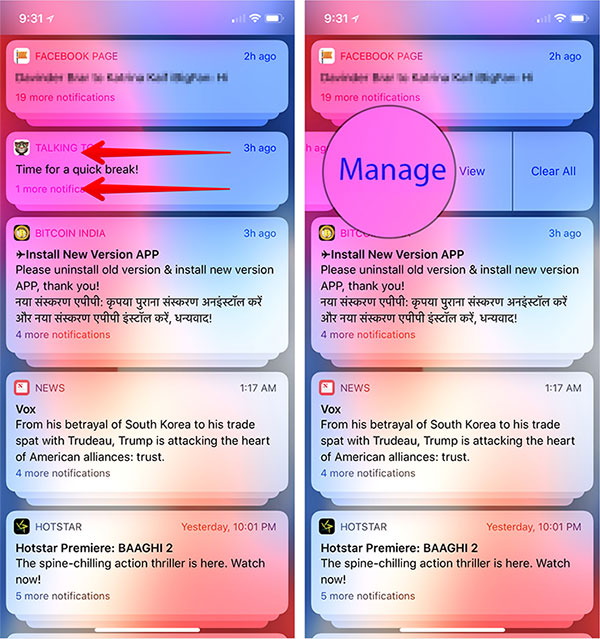
 Swipe left on Notification and press Manage
Alternatively, you can press and hold an alert → press ellipses (•••)
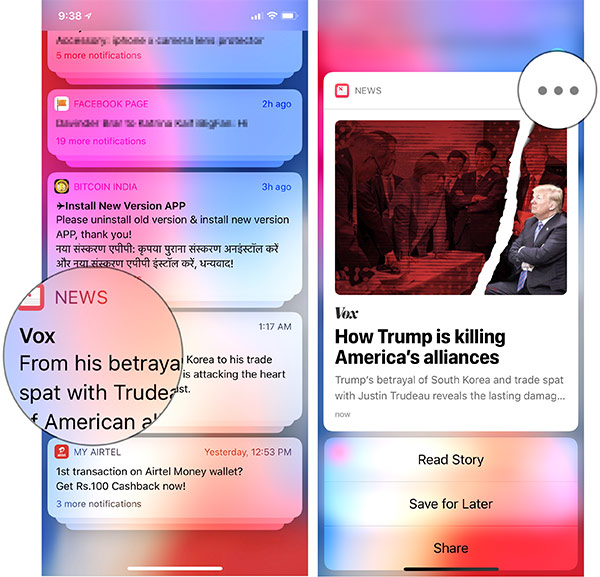
 on Notification and tap three points on the iPhone
Step # 3. Then a menu will appear on the screen.
Now you have two options:
Deliver quietly: It will pass the alerts from the lock screen and directly go to the notification center. In addition, you will not hear any sound or vibration. But the badge of the application will continue to display
Disable: It allows you to completely disable the notifications of the application.
 Options to change iPhone lock screen notification settings
Hint: Anytime you want the alert to arrive on LS in its own right, go to the notification of the application and slide your finger on it. Then tap "Manage" and select "Deliver Prominently".
 Change Notification Settings from iOS Lock Screen 12

Change Notification Settings

Gihosoft iPhone Data Recovery is a professional iPhone Data Recovery software to get back all your lost text message, photo, video, call history, note, contact and more from iPhone/iPad/iPod Touch. It offers a full solution to recover your lost data in different tough situations. Besides recovering data directly from iPhone, iPad and iPod touch, it also allows you to recover data from iCloud and iTunes backup files.

Friday, 15 June 2018

How to Fix "Safari cannot Open the Page because the Address Is Invalid" on iPhone/iPad?

How to Fix "Safari cannot Open the Page because the Address Is Invalid" on iPhone/iPad?

For many iPhone users, the first solution that comes into their mind when their Safari fails to load a page stating that the web address is not valid is to delete Safari browser and then reinstall it later. Note that this will not work. Safari is the default browser on iPhone and hence it cannot be deleted. To actually fix the error, follow the steps below:
Step #1: Force restart your iPhone.
To do this, you will need to hold down the “Wake/Sleep” button together with the “Home” button. Keep holding both buttons for about 10 to 15 seconds. You should let go when the Apple logo appears on your screen.
Step #2: After the device restarts, locate Safari in Settings and tap on it.
Step #3: Locate Cookies and Data and tap on it. Clear the Cookies and Data.
Step #4: Restart your iPhone.

clear safari history website data ipad
To do this, hold down the “Wake/Sleep” button until a red slider shows. Slide the red slider to turn the device off. After the device is completely off, hold down the “Wake/Sleep” button for a second time until you see an Apple logo. Gihosoft iPhone Data Recovery is a professional iPhone Data Recovery software to get back all your lost text message, photo, video, call history, note, contact and more from iPhone/iPad/iPod Touch. It offers a full solution to recover your lost data in different tough situations. Besides recovering data directly from iPhone, iPad and iPod touch, it also allows you to recover data from iCloud and iTunes backup files.


Skype Not Working on iPhone X/8/7, How to Fix?

Tip: Skype Not Working on iPhone X/8/7, How to Fix? In case Skype is not working, there are a handful of solutions that can help you resolve...